What is IBO Player?
IBO Player is a versatile IPTV media player available on nearly every platform and operating system. Its clean user interface, smooth playback, and robust feature set make it the preferred choice for IPTV viewers worldwide. ZoneXTV uses IBO Player exclusively for delivering our premium streaming service.
Supported Devices
IBO Player is available on the following platforms:
- Android phones and tablets (Google Play Store)
- Amazon Fire TV Stick and Fire TV (Amazon Appstore)
- Windows PC (Microsoft Store or direct download)
- macOS (App Store)
- Samsung Smart TV (Samsung App Store / Tizen)
- LG Smart TV (LG Content Store / webOS)
- iOS devices (App Store)
Installation on Android
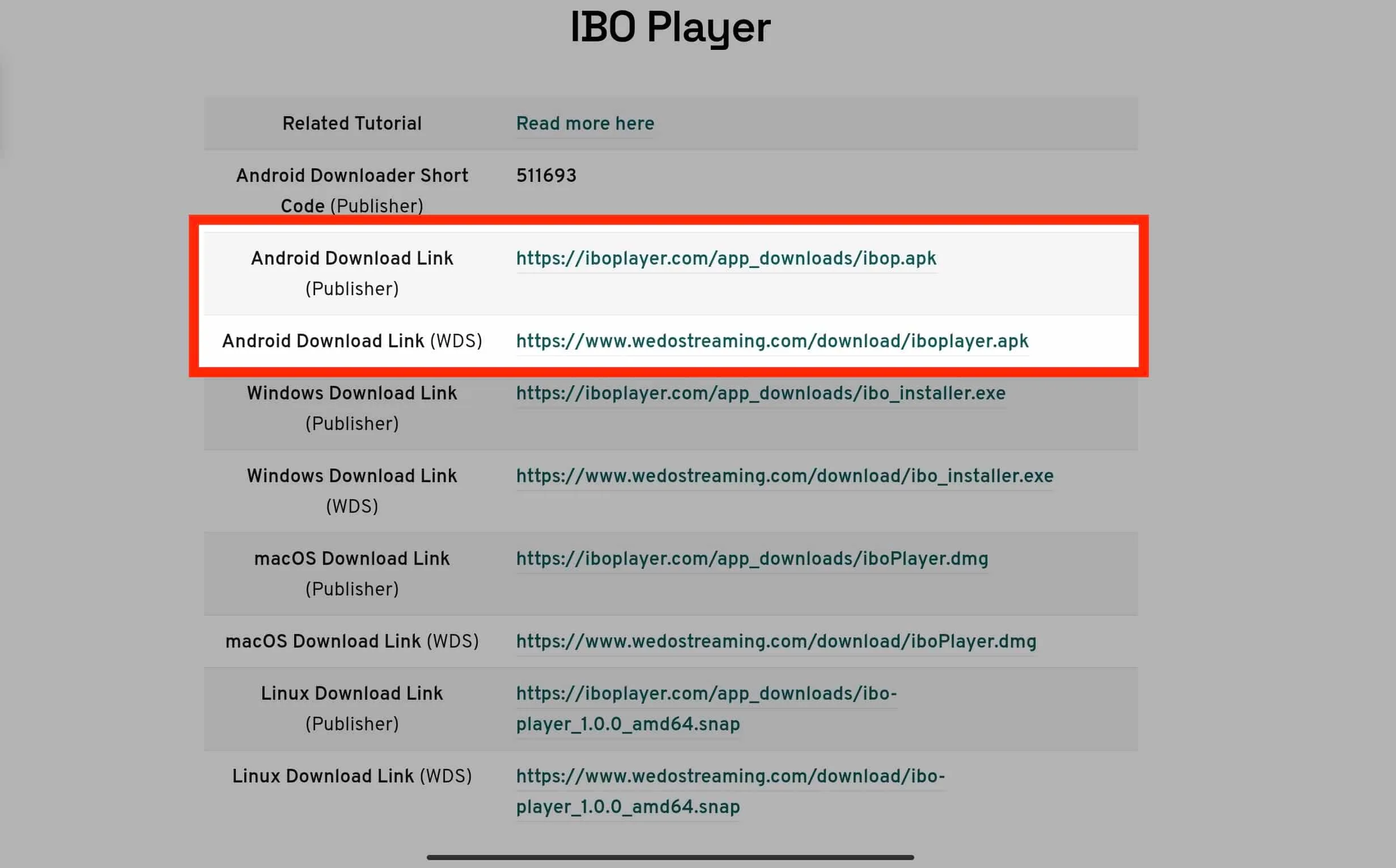
- Open the Google Play Store on your Android device.
- Search for "IBO Player" and tap Install.
- Once installed, open the app. Note the device ID displayed on screen.
- Enter the playlist credentials from your ZoneXTV activation email.
- Channels and VOD content will load automatically.
Installation on Amazon Fire TV Stick
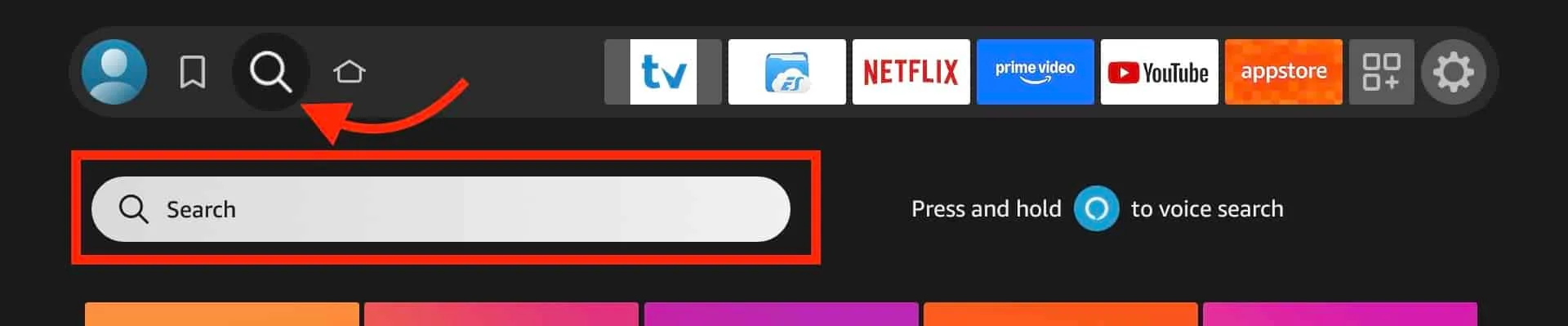
- From the Fire TV home screen, go to the Search icon.
- Type "IBO Player" and select the app from search results.
- Click Download/Get to install the application.
- Launch IBO Player and note your device MAC address.
- Add your ZoneXTV playlist using the M3U URL or Xtream Codes from your email.
- Browse and enjoy 40,000+ live channels.
Installation on Windows
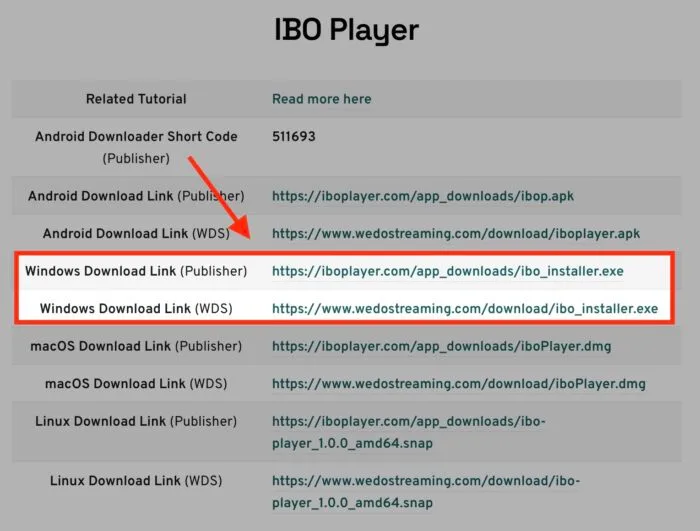
- Open the Microsoft Store or visit the IBO Player website.
- Download and install the IBO Player application.
- Launch the app and enter your ZoneXTV credentials.
- Your channel list will populate within seconds.
Installation on macOS
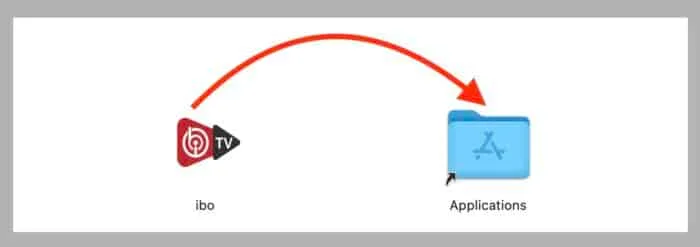
- Open the Mac App Store and search for "IBO Player".
- Click Get/Install to download the application.
- Open IBO Player and add your ZoneXTV playlist credentials.
- Start streaming on your Mac immediately.
Installation on Samsung and LG Smart TV
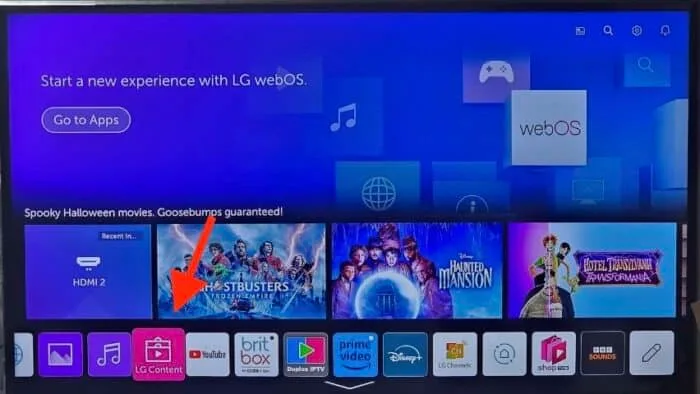
- Open the app store on your Smart TV (Samsung App Store or LG Content Store).
- Search for "IBO Player" and install it.
- Launch the app and note the device MAC address shown on screen.
- Enter your ZoneXTV playlist URL or credentials from your activation email.
- Enjoy crystal-clear streaming directly on your TV.
Adding Your IPTV Playlist
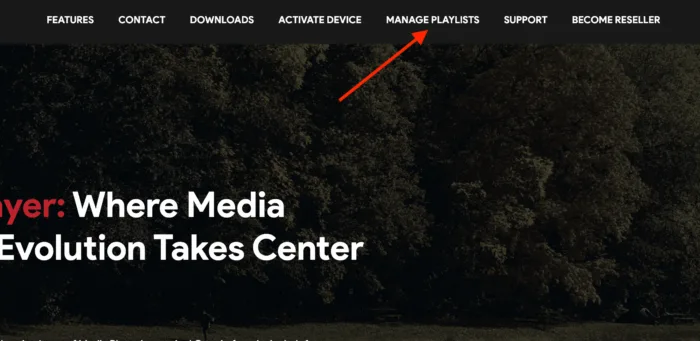
After installing IBO Player on your device, you need to add the playlist provided by ZoneXTV. There are two methods:
Method 1: M3U / Streaming Line
- Open IBO Player and navigate to the playlist management section.
- Select "Add Playlist" and choose "M3U URL".
- Paste the M3U URL from your ZoneXTV activation email.
- Give the playlist a name (e.g., "ZoneXTV") and save.
Method 2: Xtream Codes (XC)
- Open IBO Player and select "Add Playlist".
- Choose "Xtream Codes" as the playlist type.
- Enter the Server URL, Username, and Password from your ZoneXTV email.
- Save and your channels will load automatically.
Tips for Best Performance
- Internet Speed: Minimum 10 Mbps for HD, 25 Mbps for 4K streaming.
- Wired Connection: Use an Ethernet cable when possible for the most stable connection.
- Clear Cache: Periodically clear the app cache to maintain smooth performance.
- Update Regularly: Keep IBO Player updated to the latest version for bug fixes and improvements.
Need Help?
If you encounter any issues during setup, our 24/7 support team is ready to assist you. Contact us via WhatsApp or email for immediate help.